End of day help guide
End of Day is your daily till close inside mybridal. It gives you one place to check what the system thinks you took, count the till, and lock that day’s figures so you have a clear record for the shop, the bank, and your accountant.
The point of the feature is not to stop you editing a sale later. It is to keep a snapshot of what happened on the day, then record any later corrections as adjustments. That way last night’s till count stays as it was, and you can still see what changed afterwards creating a proper audit trail.
It is optional and stays off until you switch it on. If you do not want to cash up in mybridal you can skip this feature and leave it turned off.
The end of day report can be used to hand over to your accountant. We plan to integrate with online accountancy services in the future such as Xero and Quickbooks and in order to do this accurately you will have to use the end of day feature.
This guide walks you through exactly what you need to do to turn it on, close a day, and understand what happens if something is edited after close.
Jump Ahead
- What End of Day does
- Decide who can close the day
- Turn End of Day on
- Choose your settings
- Close a normal day
- Closing today vs a past day
- If you forget to close
- Editing a sale or payment after close
- Looking back at closed days
- Reports
- What is not included yet
1. What End of Day does
End of Day is your daily till close inside mybridal.
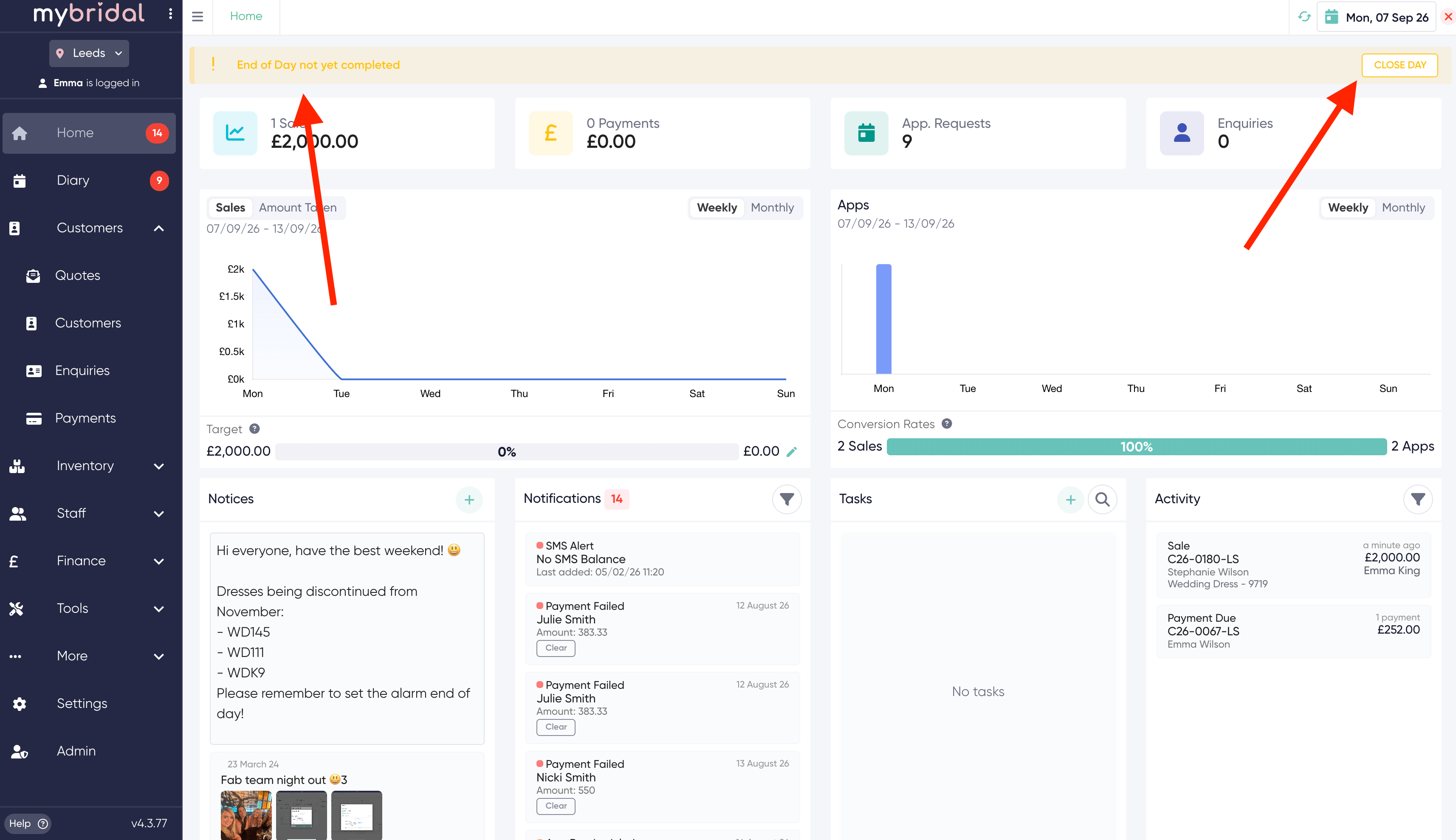
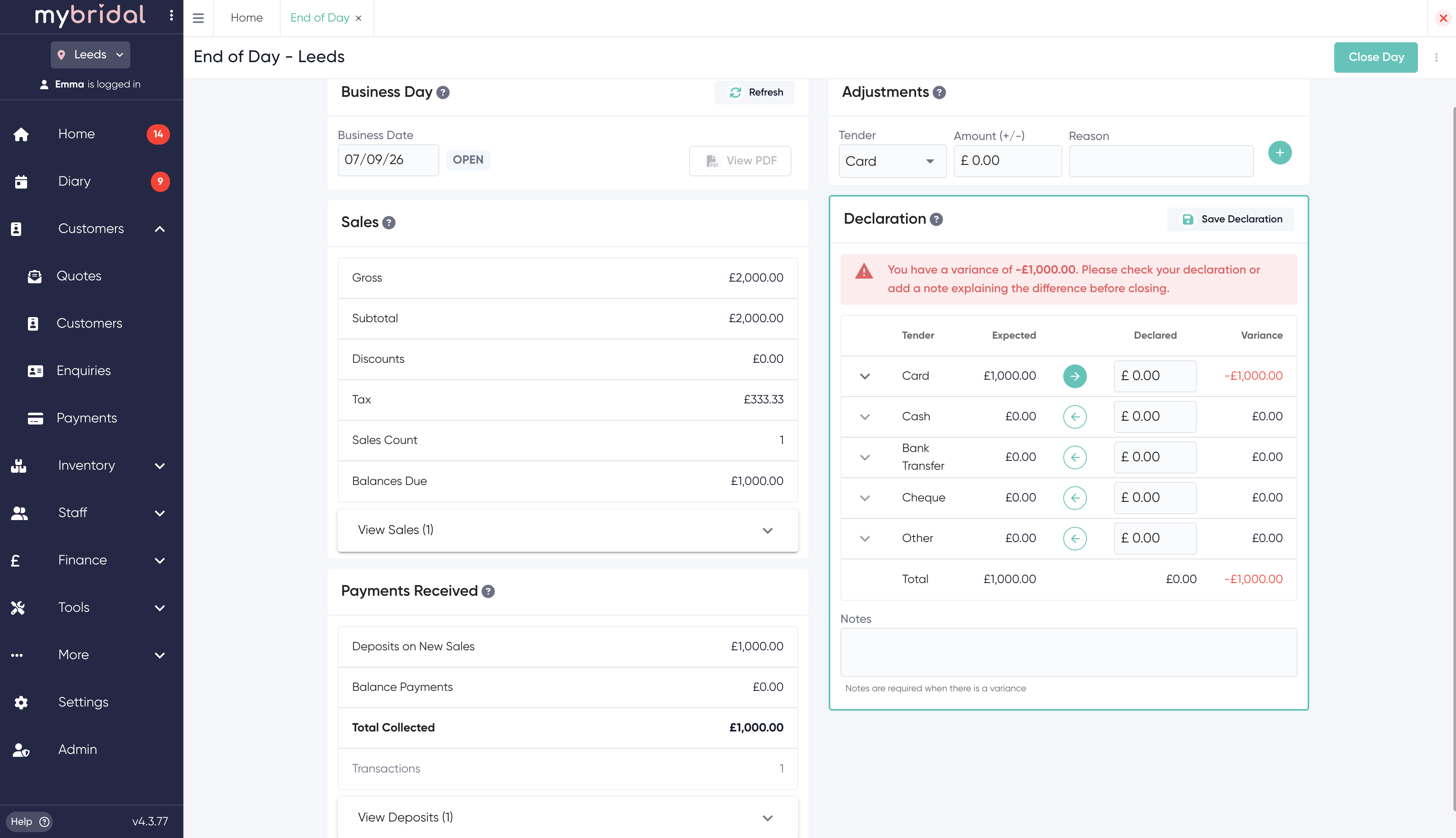
At the end of trading you will have a prompt on your home screen to complete end of day or you can access it by going to finance > end of day. The system shows what it thinks you should have taken (Expected). You count the till and type what you actually have (Declared). You then close the day.
Once a day is closed:
- The original till count is kept as it was that night
- Staff can still edit a sale or payment if they need to
- Those later changes are recorded as adjustments so the original close is not rewritten
This is the same idea as a Z report, but it stays in mybridal and updates if you later correct a sale.
2. Decide who can close the day
Only staff with the End of Day permission can open the close screen and close a day.
Go to settings > users, open the staff member, and give them the End of Day permission for the store they cash up.
If someone does not have this permission they will not see End of Day in the menu.
If you have more than one store, the End of Day screen uses the store selected in the header. Check you are on the right store before you count the till.
3. Turn End of Day on
Go to settings > finance.
You will see three steps: Payments, End of Day, and Accounting.
Click End of Day (or go to settings > finance and scroll to the End of Day settings).
Turn on ‘Enable End of Day’ and click Save.
4. Choose your settings
Once End of Day is enabled you will see the settings below. Set these before your first close.
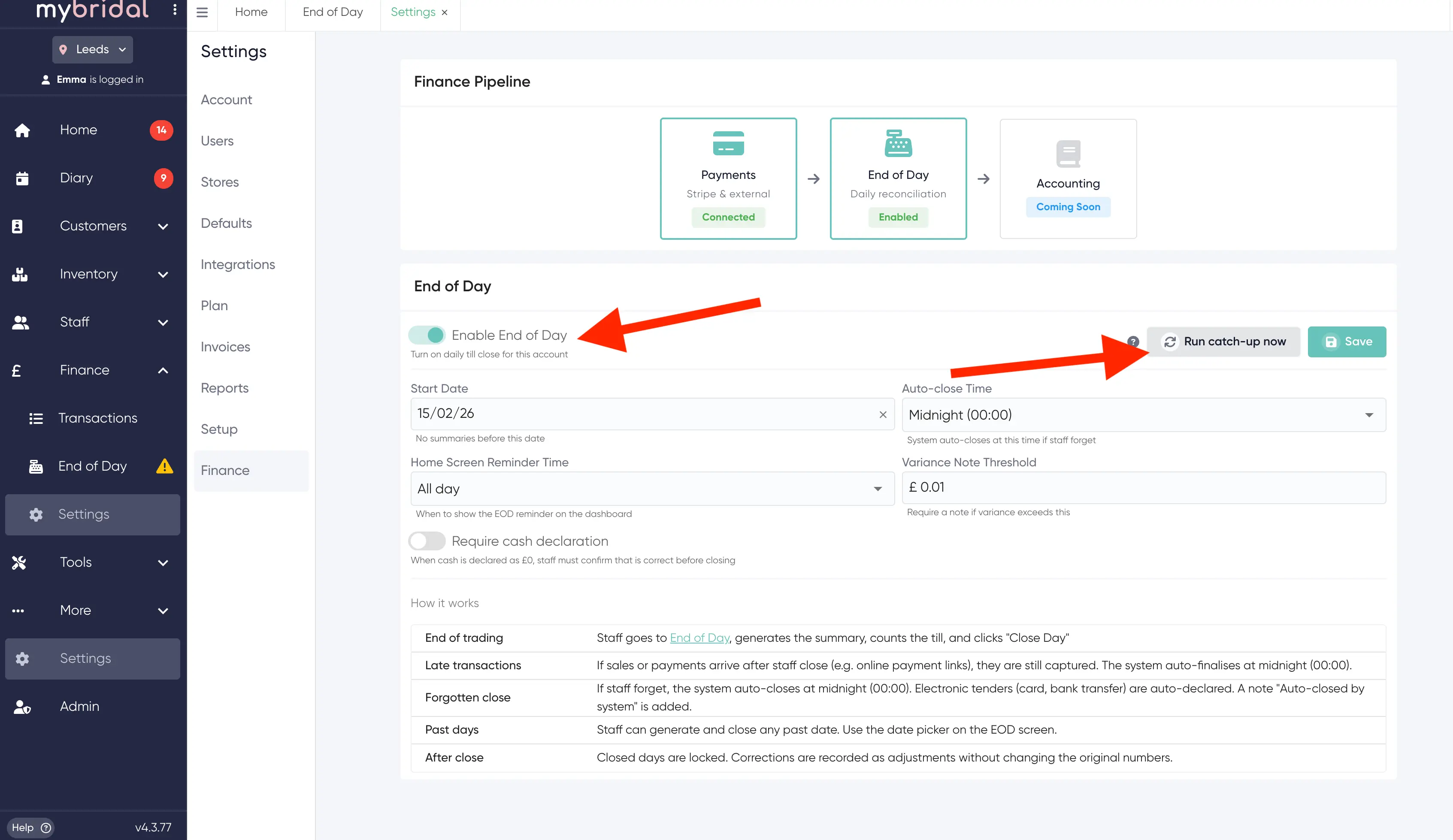
Start Date
This is the first day mybridal will treat as an End of Day day. There are no summaries before this date.
If you have already been trading and you want past days closed as well, pick the date you want to start from, save, then use ‘Run catch-up now’. Catch-up closes every day from your start date through yesterday that is not yet closed. Payment types are taken from your records. Cash is filled to match the system expected amount, with a note that it was auto-closed.
If you only want to start from today, set Start Date to today and do not run catch-up.
Auto-close Time
If nobody clicks Close Day, the system closes the day at this time (the default is midnight).
When the system auto-closes it sets Declared to match Expected and adds a note: “Auto-closed by system”. You should still check the till the next morning if this happens, especially cash.
Home Screen Reminder Time
This is when the Home screen shows a reminder to close the day (the default is 3:00 PM). The banner buttons are CLOSE DAY or VIEW EOD.
Variance Note Threshold
If the difference between Expected and Declared is bigger than this amount, staff must add a note before they can close. This is so a short or over till always has a written reason.
Require cash declaration
When this is on, staff cannot close with £0 cash unless they confirm that £0 is correct. Turn this off only if you do not take cash.
5. Close a normal day
You can open End of Day from several places in mybridal which are:
- Finance > End of Day
- The Home screen banner (after the reminder time)
- More > Reports > End of Day, then click a day
A normal close looks like this
- Check you are on the right store in the header if you have multiple stores on your account.
- Choose the Business Date and click Refresh (or Generate).
- Check Sales and Payments Received. You can expand a tender to see the individual payments.
- Count the till.
- Fill in Declaration on the right. Expected is what mybridal thinks you took. Declared is what you counted. The arrow copies Expected into Declared if they match.
- If cash is £0 and you really have no cash, tick to confirm that is correct.
- If there is a variance above your threshold, add a note explaining it (for example a miscount or a float not yet banked).
- Click Save Declaration.
- Click Close Day.
Please declare each tender that has an expected amount before closing. Close Day stays off until the required declarations are filled in.
You can export the day as a CSV from the menu on the End of Day screen once it has been submitted or closed.
6. Closing today vs a past day
A past day
If you close yesterday (or any earlier date), the day closes straight away. Transactions for that date are locked to that close.
Today
If you close today, the day is submitted and waits overnight. It is pending close until Auto-close Time. Late payments (for example a customer paying a payment link after you have cashed up) are still captured. The system then finalises the day at Auto-close Time.
7. If you forget to close
If nobody closes the day, mybridal auto-closes it at your Auto-close Time.
Declared is set to Expected. A note is added that it was auto-closed by the system.
This keeps the days moving so you do not have a backlog. It does not mean someone counted the till. If you see the auto-close note, check cash and cheque the next morning.
8. Editing a sale or payment after close
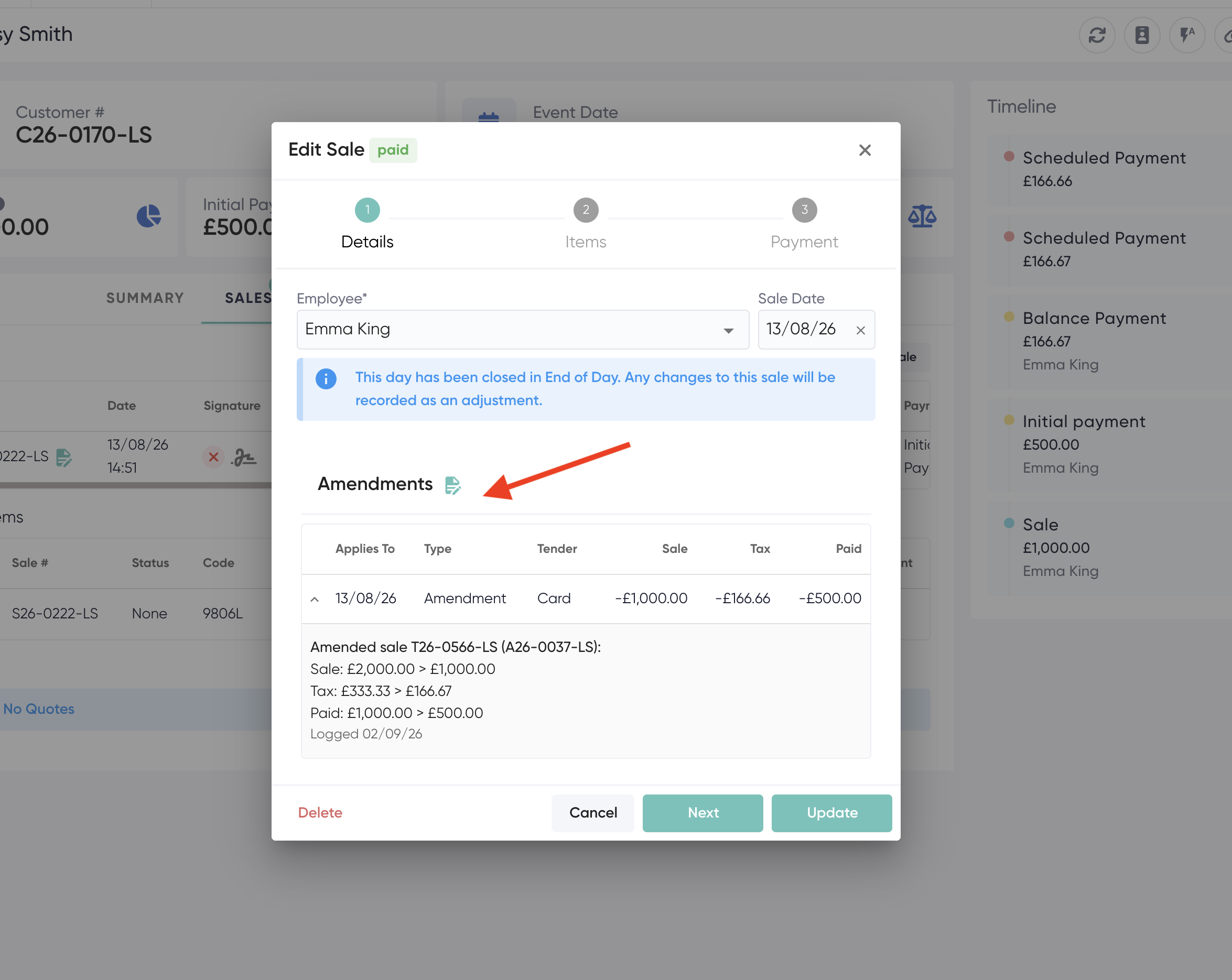
Staff can still edit a sale or payment on a closed day. A note on the sale or payment will tell you the day is closed and the change will be recorded as an adjustment.
What this means in practice:
- The original till count does not change. What you declared that night stays as it was.
- The change is listed under Adjustments (for example a sale moved, a payment method corrected, or a refund added later).
- Those system adjustments are locked. You cannot delete them with the bin. Manual adjustments you add yourself can be deleted if they were a mistake.
If money is added or taken off after close, the End of Day screen keeps the original declaration and shows the extra under Payments Received as “Total incl. Adjustments”.
Use a refund if you need to send money back to a customer. Do not try to lower a deposit that has already been taken to “fix” an overpayment. That is covered in the refunds guide.
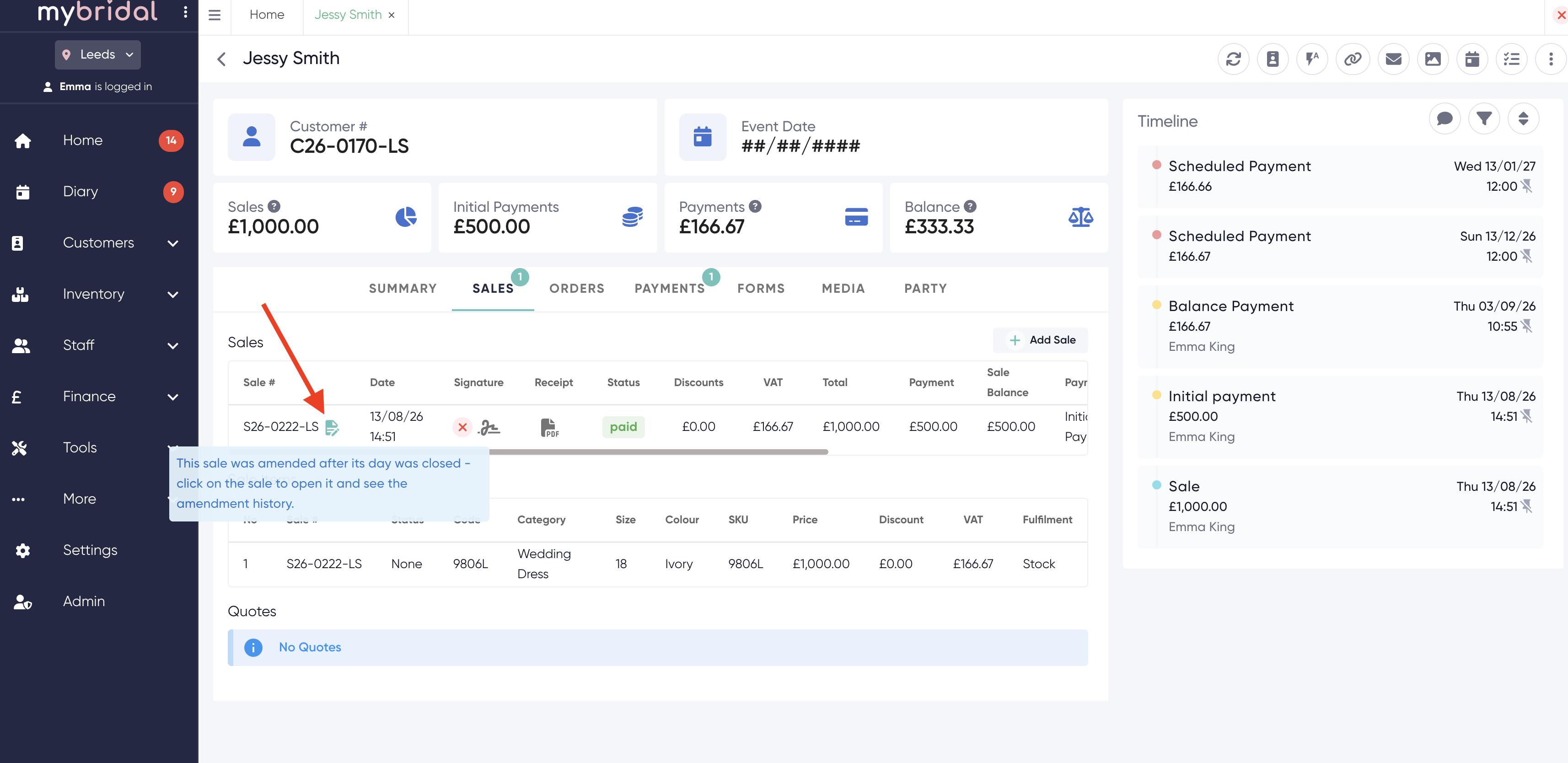
When an account has had an adjustment you will be able to see as you can see the adjustment icon show below. When you click onto the sale to open it up you will be able to see further details of what the adjustment was.
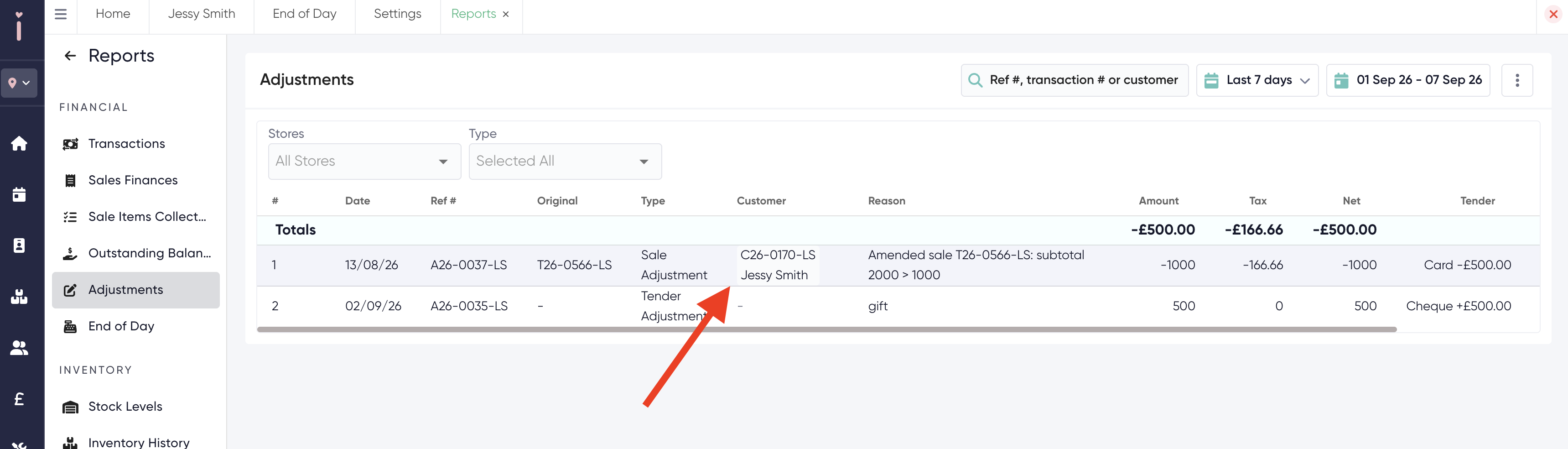
You also can view a full report of the adjustments by going to more > reports > adjustments.
9. Looking back at closed days
Open Finance > End of Day and pick an earlier Business Date, or go to More > Reports > End of Day and click a row.
You will see the original declaration, any variance note from the night, and any adjustments added after close.
If you have more than one store, the End of Day report has a store picker. The close screen itself follows the store in the header.
10. Reports
When End of Day is on, More > Reports includes two extra financial reports:
- End of Day (a list of days - click a row to open that close)
- Adjustments (changes recorded after a day was closed)
On the main money reports such as sales finances or transactions you can switch the view (when you are not searching):
- Current - today’s live figures, including later edits
- Original - the figures as they were when the day closed
- Audit - original plus the adjustments that happened after close
Search always shows live data.
11. What is coming next
Accounting on the Finance page shows Coming Soon. End of Day does not post to Xero or QuickBooks in this release but this is a feature we are working on and will be coming soon following on from this feature release.
You can still close the till, keep a locked record of each day, and see adjustments when something is edited later.
These reports can be used to send to your accountant.
You are now ready to turn End of Day on.
If you switch it on after you have already been taking payments and using mybridal, make sure you set your Start Date and use ‘Run catch-up now’ so the past days you want included are closed in one go.