How to refund a payment
A refund is how you send money back to a customer and tell mybridal what that means for the sale.
The point of the feature is to clarify 1. if the value of the sale changes when the refund is applies which determines if the refunded amount is still owed as balance on the account and 2. how that refunded money goes back to the customer.
Use a refund when money actually needs to go back. Do not lower a deposit that has already been taken, and do not delete a paid item, to “fix” an overpayment. If she has paid more than the sale is now worth, refund the difference. Refunds on mybridal should reflect what has happened in real life with your customer.
This guide walks you through exactly what you need to do to refund a sale, a deposit, a later payment, or an appointment charge.
Jump Ahead
- When to refund (and when not to)
- Open a refund
- Choose what to refund
- Is this order still going ahead?
- How the money goes back
- Messages after a refund
- Changing Yes / No later
- What you cannot change
- Refunds and End of Day
- Common examples
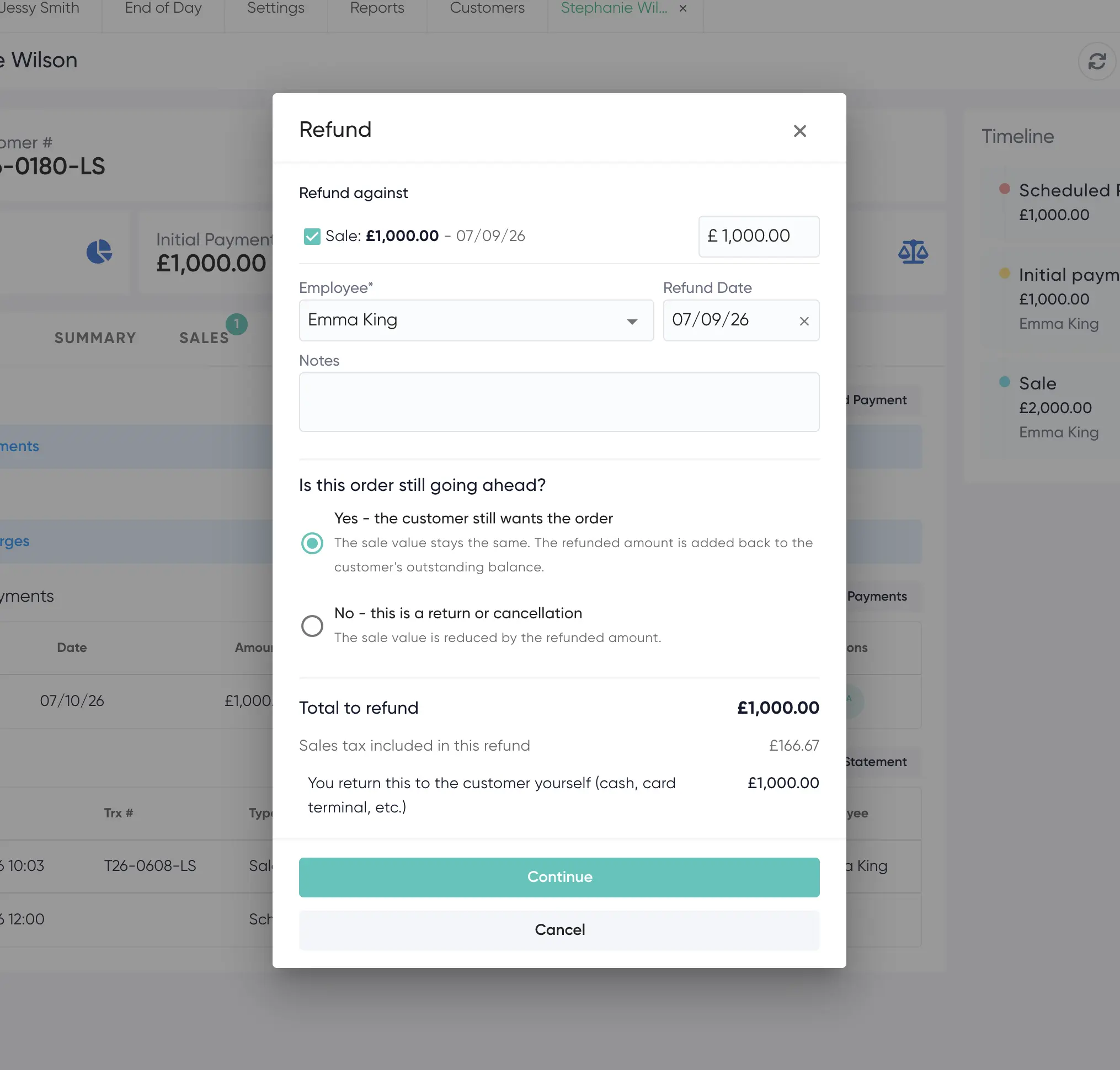
The image below shows the refund screen, including the “Is this order still going ahead?” choice.
1. When to refund (and when not to)
Use Refund when you are handing money back, or sending it back to a card.
Do not use Refund if you only need to correct a typing error on an unpaid amount. Edit the sale or payment instead.
Do not use Void if you want the customer to have their money back. Void takes the payment off the customer in mybridal. It does not refund Stripe. The books will say unpaid and the card will still have been charged.
Deleting a line on a sale updates stock and orders. It does not send money back. If the item was already paid for, she will show as overpaid until you refund the amount.
2. Open a refund
Open the customer.
You can start a refund from:
- The payments list on the customer (Refund)
- An existing payment or sale deposit
- A charge (for example an appointment fee)
The refund screen lists the payments that still have money available to refund.
3. Choose what to refund
Tick each payment you are refunding. You can refund part of a payment. Use Select all if you are refunding everything that is left.
For each Stripe payment you will also see Refund method:
- Via Stripe - mybridal sends the money back to the card
- Manually - you already handed it back yourself (cash, your own card terminal, bank transfer)
Add the staff member, the refund date, and any notes.
4. Is this order still going ahead?
This question only appears when you refund a sale or a deposit. It does not appear for a later balance payment or an appointment charge.
Yes - the customer still wants the order
The sale value stays the same. The refunded amount is added back to her balance on the account. Use this when she is still buying the dress (or other items) and you are only handing money back, for example a brides dad paid and then the bride paid as well so there was a double payment.
No - this is a return or cancellation of an order
The sale value is reduced by the refunded amount. Use this when an item is coming back or the order is cancelled. This will change the value of the original sale so there is not outstanding balance left.
Later balance payments
If you refund a balance payment she made after the original deposit, that never changes the sale figure and the refunded amount will be added back to the balance. If you wish to write this balance off this can be done by doing a balance adjustment or zeroing the account.
5. How the money goes back
At the bottom of the screen you will see Total to refund, split into:
- Refunded to the customer’s card automatically (Stripe)
- You return this to the customer yourself (cash, card terminal, etc.)
Stripe refunds go back to the card that was charged via Stripe. You do not need to type card details again.
If you refund the customer any way that is not Stripe it is manual and you will be asked how you handed the money back. Pick cash, card, bank transfer etc to match how the money went back. This is what End of Day uses when it checks the till. If you skip this step, mybridal assumes the refund method is the same as the original payment.
6. Messages after a refund
You can set up an autoflow message to send to your customers when a refund has been completed.
This can be done any going to tools > automations > create a message template using the payment refund action > go to autoflows > create an autoflow to send the message using the payment refund autoflow trigger.
Manual refunds - once this is added you will see the Refund Autoflows popup appear. Choose whether to send your Payment Refund message, or skip it.
Stripe refunds - These will automatically send the Payment Refund message when Stripe confirms the money has gone back to the customer without you doing anything as long as you have an autoflow set up. You will not see the autoflow pop up for this.
You can set up or copy a Payment Refund template under Automations > templates, then attach it to an autoflow with the Payment Refund trigger.
7. Changing Yes / No later
If you picked the wrong answer to “Is this order still going ahead?”, open the refund again.
You can change Yes or No and click Save change. No money moves a second time. The sale figure and the customer’s balance update to match the new choice.
This is only for sale and deposit refunds.
8. What you cannot change
A refund that went Via Stripe cannot be edited or deleted afterwards. You will see a note: “This refund can’t be amended or deleted because it was an integrated refund via Stripe.”
If the Stripe amount was not enough, create another refund for what is still left, or take a new payment if you sent too much back.
Manual refunds can still be edited (amount, date, notes) unless your stores process says otherwise.
9. Refunds and End of Day
If End of Day is on and you refund a day that is already closed, the original till count stays as it was that night. The refund is recorded as an adjustment on that day.
If you later change Yes / No for changing the sale amount on a refund from a closed day, the customer updates immediately and the closed day’s sales-return vs balance split is updated to match.
You do not need to reopen the day.
10. Common examples
Customer is still buying the dress, you are refunding part of the deposit
Refund the amount. Choose Yes - the customer still wants the order. The sale stays. She owes that amount again (or it sits as an overpayment if she has already paid enough another way).
Customer paid in full, then you remove an item from the sale
The payment already taken stays. She is overpaid. Refund the difference. Choose No if that item is a return. Choose Yes if the order is still going ahead and you are only handing money back.
Dad paid on a link, then customer paid in store so accidentally paid twice
Refund dad’s payment (or hers). Choose Yes so the sale does not disappear. Send the refund Via Stripe if it was a card payment, or Manually if you handed cash back.
An appointment fee needs to go back
Refund the charge. There is no order question. Use Via Stripe if it was taken on a card in mybridal.
A customer has bought a dress and a bag, paid 50% deposit and now wants to return the bag
You first need to open the sale by clicking on it and edit this to remove the bag. This will adjust the sale value and you can then adjust the outstanding balance of the dress to reflect the lower sale value.
For example £1000 dress + £50 bag with a 50% deposit means £525 was paid. She then decided to return the bag so it was deleted from the sale. This will reduce the sale value to £1000 from £1050. Because £525 was already paid, £1000 - £525 = £475 left to pay.
You are now ready to refund from a customer record, choose whether the order is still going ahead, and send the money back on the card or by hand.
If you are not sure which Yes / No to pick, choose the one that matches what is happening in the shop, then open the refund and use Save change if you need to correct it.