How to collect the rest of a balance
After a sale, many customers still owe money. A payment plan is the list of dates and amounts for that leftover balance, and how each one will be collected. This also can apply for just one outstanding balance payment, for example if you pay 50% upfront and then 50% on collection.
The point of the feature is to choose, per instalment, whether you will collect it yourself manually, email the customer a reminder (with an optional stripe pay link), or automatically charge a card you have saved to receive payment. You can mix these on the same customer. When the balance hits £0 the plan is cleared.
This guide first explains the three ways you can collect a leftover balance, then how you pick one after you save a sale, then how to edit the plan later, what the customer can do in the portal, and which messages go with each option.
Jump Ahead
- The three collection options
- Choose an option after you save a sale
- Open and edit the payment plan
- Manual collection
- Payment reminders by email
- Automatic card payments
- Auto-Card Terms
- Mixing options on one plan
- Recalculate and what happens when they pay
- What customers can do in the portal
- Messages and autoflows
- What you will see on the payments list
- Common examples
1. The three collection options
If the customer still owes money after today's payment, you choose how the rest will be collected. There are three options.
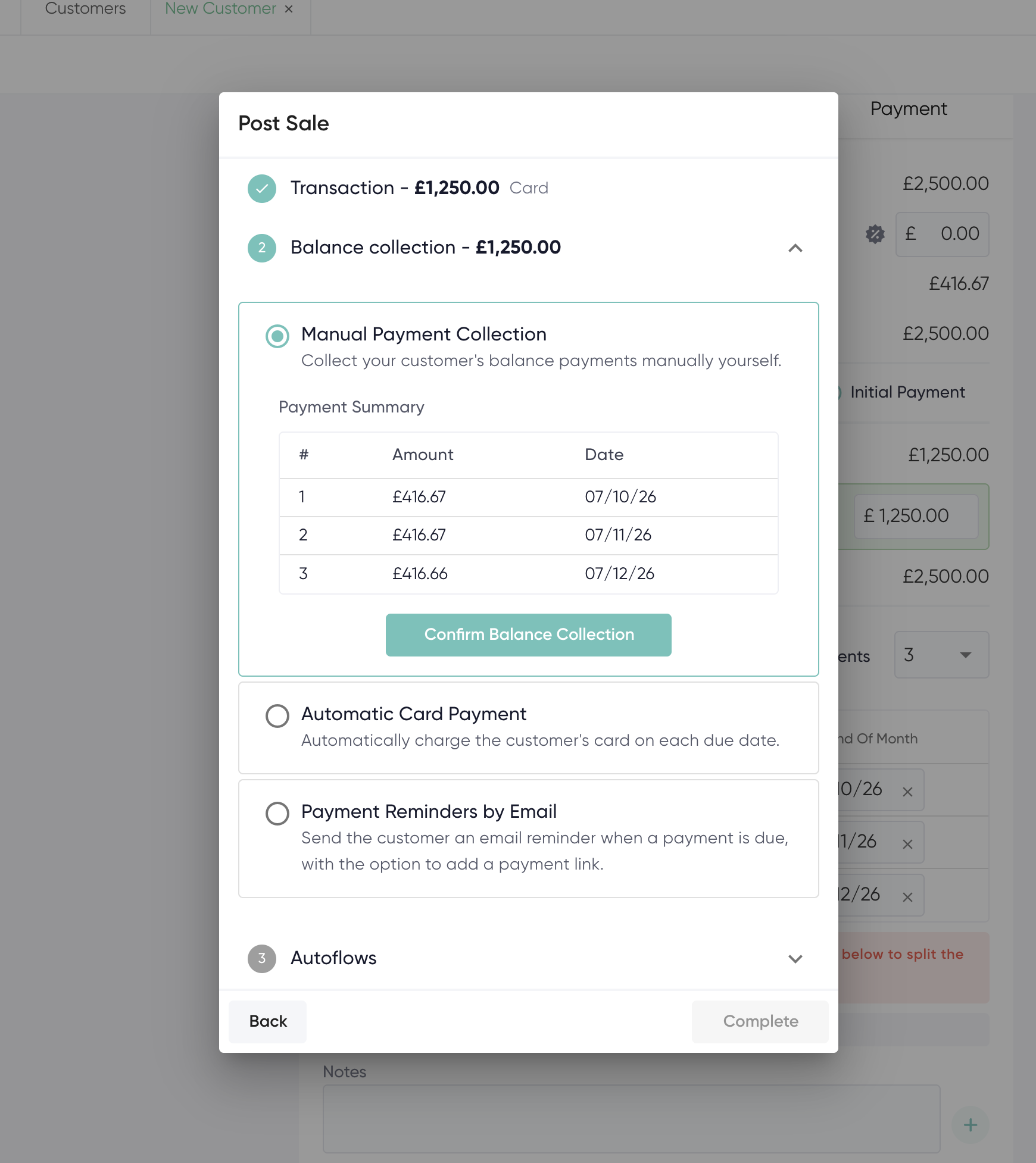
Manual Payment Collection
You collect the leftover balance yourself. The customer comes in, you call them, or you send a payment link when you are ready. Nothing is charged automatically and no reminder email is sent unless you send one yourself. This is how mybridal has always worked up to now.
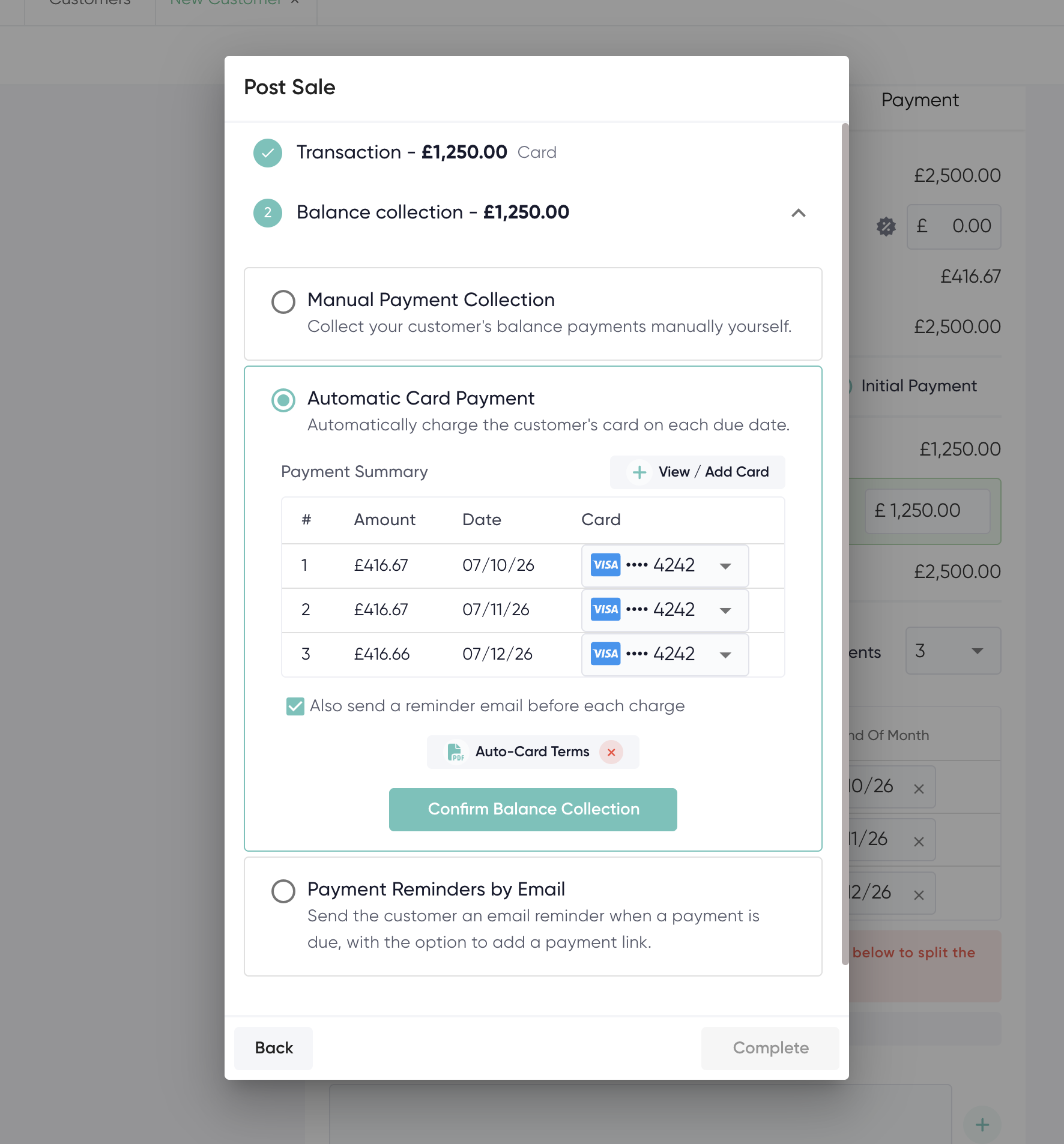
Automatic Card Payment
You use integrated stripe payments to save the customers card details and mybridal charges it on each due date automatically(around midday store time). You need Stripe connected, an email address on the customer, and a payment card on the plan. You can also tick to send a reminder email to the customer before each charge is automatically taken.
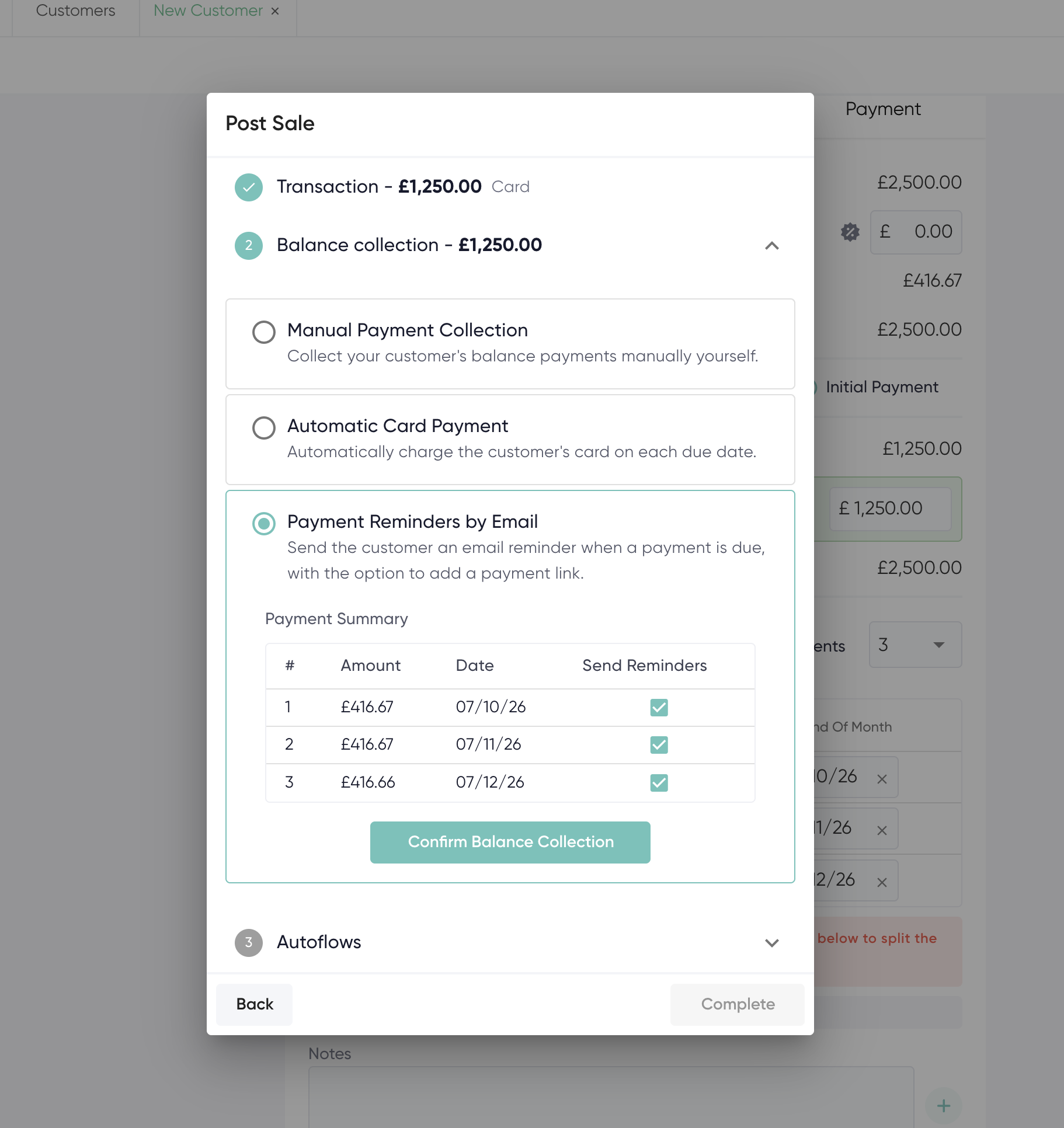
Payment Reminders by Email
mybridal emails the customer a tempered email message when a payment is due, with the option to include a pay link. Nothing is charged automatically. You would need a schedule payment reminder email template and a Scheduled Payment Reminder autoflow set up for this to work. As with all message templates you can make the content of this your own.
2. Choose an option after you save a sale
After you save a sale, Post Sale options open. If the customer still owes money you will see a Balance collection step. This is where you pick one of the three options for the leftover balance.
A normal Post Sale balance step looks like this
- Finish the Transaction step first (confirm how today's money was taken, or confirm that no payment was taken today).
- Open Balance collection.
- Choose Manual Payment Collection, Automatic Card Payment, or Payment Reminders by Email.
- Check the Payment Summary (the dates and amounts for what is still owed).
- If you chose Automatic Card Payment, add a card if there is not one already. You can also open Auto-Card Terms to get it signed, and tick "Also send a reminder email before each charge" if you want a heads-up email as well.
- If you chose Automatic Card Payment or Payment Reminders by Email and the customer has no email, add one. You cannot confirm those two options without an email.
- Click Confirm Balance Collection.
- Finish any Autoflows, then Complete.
You only pick one option here for the whole leftover plan. If you later want some of the payments Manual and some automatic card, you can then edit the payment plan on the customer account (next section).
Complete stays off until Transaction is confirmed and, if they still owe money, Balance collection method is confirmed.
3. Open and edit the payment plan
Open the customer > Payments.
Under Scheduled Payments click Edit Scheduled Payments (or the edit icon).
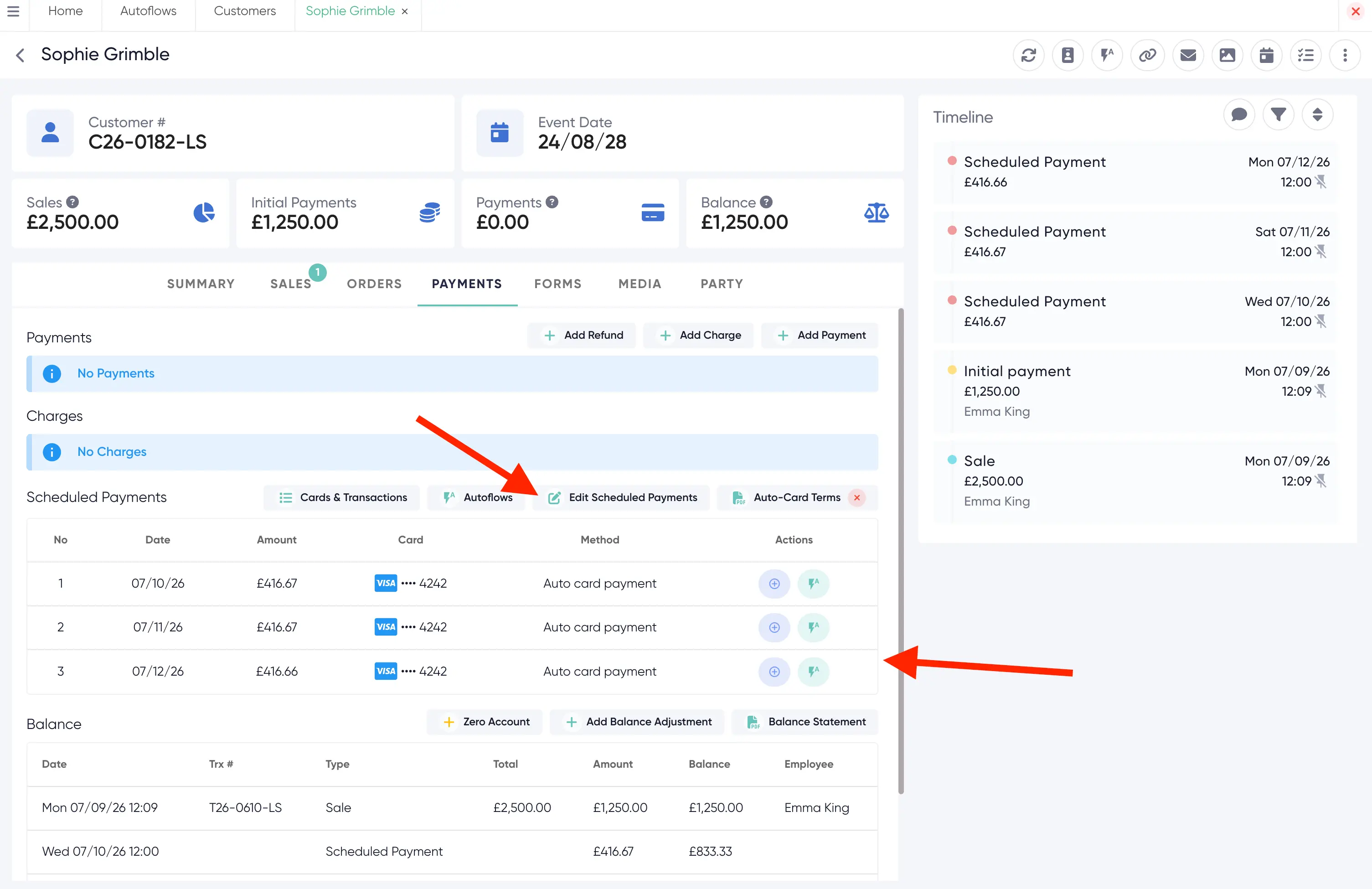
From here you can:
- Add or remove instalment rows
- Change dates and amounts
- Set each row to Manual, Reminder or Card
- Choose which saved card is used on a Card row
- Click Recalculate Payments to split the leftover balance across unpaid rows
- Update
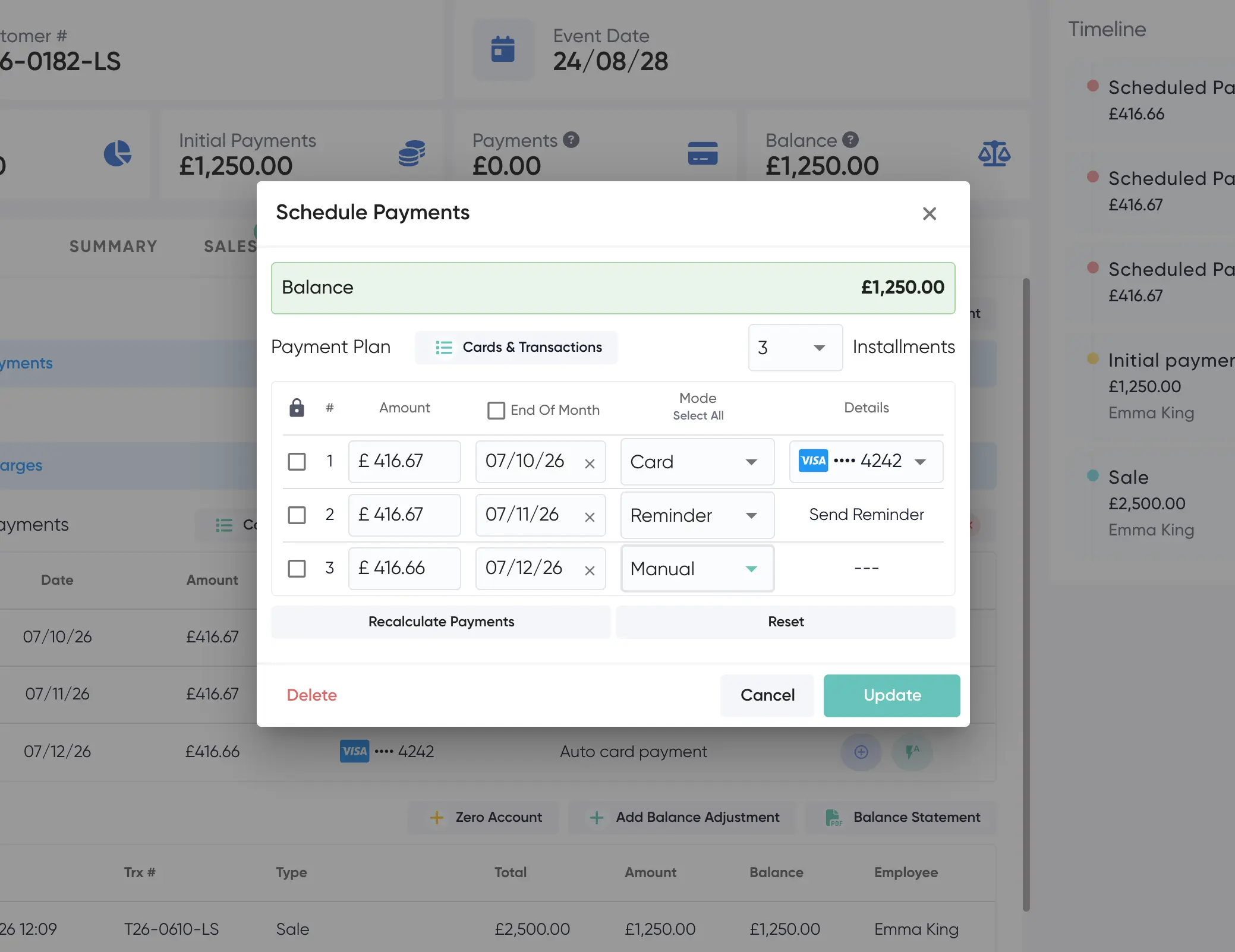
You can also build or change a plan when you take a New Payment and there is still a balance left.
Once the plan is saved, staff can still take a payment early (New Payment), send a payment link, or use Pay now on a saved card. The plan then shrinks to match what is left.
Customers cannot change dates, amounts or modes. Only you can do that in the shop.
4. Manual collection
Use Manual when you will chase the balance yourself: the customer will come in, you will call them, or you will send a link on the day.
Nothing is charged automatically. No reminder email is sent unless you also set up a reminder on that row or send a message yourself.
On the due date, take a New Payment as usual, or send a payment link from the transaction screen.
Past dates are fine on Manual rows. If a Card date is in the past, switch that row to Manual or Reminder, or pick a future date. Card cannot be saved on yesterday or earlier.
5. Payment reminders by email
Use Reminder when you want mybridal to email the customer before or on the due date, usually with a link they can pay.
What you need
- An email address on the customer
- A template and an autoflow for Scheduled Payment Reminder (see Messages and autoflows below)
If that autoflow is not set up, Reminder mode will not send anything. Set the autoflow up first.
When the reminder goes, the customer can pay from the link if you included one in your email template. That payment type shows on the customer as Reminder message.
You can also send a reminder from the customer after you edit the plan, using the autoflow popup.
Reminders do not charge a card. If you want both a courtesy email and an automatic charge on the same instalment, use Card and also tick to send a reminder (only shown if the reminder autoflow exists).
6. Automatic card payments
Use Card when the customer has agreed you can charge a saved card on the due date without them doing anything on the day.
What you need
- Stripe connected (settings > integrations)
- An email on the customer (for receipts and failed-payment messages)
- A saved card on each Card row
- A due date that is today or in the future. You cannot set Card on a past date.
How the charge works
mybridal charges around midday in the store's timezone on that date.
If the card fails, it tries again up to 3 total attempts. These attempts will be roughly 24 hours apart so if a payment fails on Monday 12pm it will be re-tried Tuesday and Wednesday 12pm, then after the last fail, charging on that instalment stops. You will need to take payment another way or update the card and try again.
You can set up message templates and autoflows for both a retryable payment fail (could say something such as sorry your payment has failed, this will be retried in 24 hours please ensure you have funds available in the account) and for a final failure (could say something such as sorry we have been unable to successfully process your balance payment, please contact the boutique directly to make payment).
If someone has already paid that instalment (in store or via a link), the automatic charge is skipped.
If the Card date was typed in as a past date, the overnight job will not charge it. Change it to Manual or Reminder, or pick a future date.
A successful automatic charge shows on the payments list as Auto card payment.
7. Auto-Card Terms
When a customer is going on automatic card payments you can open Auto-Card Terms. This is a PDF they can sign to say they agree to be charged.
You can edit the footer of this document by going to settings > account > Auto-Card Terms (two footer lines, separate from sale receipt footers). It will also automatically attach your sale T&Cs.
Changing an auto-card amount or date clears the signature so they can sign again. Swapping which saved card is used does not.
Once it is signed, the portal tells the customer to contact the store if they need a new copy.
8. Mixing options on one plan
You do not have to pick one mode for the whole balance.
Example:
- Next week: Card (charge the saved card)
- Next month: Reminder (email a link)
- The final fitting: Manual (they will pay in store)
Each row is independent. Recalculate Payments re-splits unpaid amounts. It does not invent extra rows. If the plan is short of the balance, add a row or recalculate.
9. Recalculate and what happens when they pay
Recalculate Payments
Use this after you change the number of instalments or the total still owed. It splits the leftover balance across the unpaid rows. Rows you have fixed stay as they are.
When money comes in
Unpaid instalments shrink from the furthest date first. The system does not add extra rows for you.
When the balance is £0
The whole scheduled plan is cleared. There is nothing left to charge or remind.
If a payment comes in that is more than the next instalment, the later ones reduce. You do not need to edit every row by hand unless you want a different split.
10. What customers can do in the portal
If you have access to the customer portal on your plan (growth or advanced) your customers now have several options directly through their own portals.
Go to settings > defaults > sales and payments > Payments > Portal Balance Payments to edit what they have access too.
- Off - (Default) - they can see the plan but there is no Pay now so they can't make payments.
- On - All Outstanding Payments - Pay now on any unpaid instalment. The customer can click 'pay now' and pay a balance payment using the Stripe integration.
- On - Scheduled Automated Payments Only - Pay now only available on Card (auto-charge) rows already set up meaning they can click and pay in advance of their due dates if they want too.
What they can do
- Pay now (if you have turned that on)
- View a receipt after they pay
- Change or update the saved Payment Card on auto-card rows (pick another saved card, or add one)
- Sign Auto-Card Terms once
What they cannot do
- Change amounts or dates
- Turn a Manual or Reminder row into the auto card payment option
- Remove the only card still used on the plan if you have scheduled
If they need a different date or amount, they contact the store and you edit the plan.
The image below shows the portal scheduled payments list with Pay now and Change Payment Card.
11. Messages and autoflows
Set these up under Automations > templates and Automations > Autoflows. Use Default templates or copy them into My Templates to customise the messages and make them your own.
Scheduled Payment Reminder
Trigger: Scheduled Payment Reminder.
This is the email (or SMS) for is designed to be sent before a balance payment is due to remind the customer it is coming up. The template should be a Payment Reminder template so it can include the invoice link, amount and due date.
If this autoflow is missing, reminders will not send.
Scheduled Payment Failed Retryable
Trigger: Scheduled Payment Failed Retryable.
Use this for the first and second failed automatic charges (the ones that will be tried again). Tell the customer the card did not go through and you will retry, or ask them to update the card.
Scheduled Payment Failed Final
Trigger: Scheduled Payment Failed Final.
Use this after the last failed attempt, when automatic charging on that instalment has stopped. Ask the customer to pay another way or call the boutique.
Payment received
When the customer pays from a reminder link or you take a payment in store, use your normal payment received / sale messages from the autoflow popup. Automatic card charges can also send a receipt if you have that set up.
12. What you will see on the payments list
The Type column on payments tells you how that money came in:
- Auto card payment - scheduled charge (or staff Pay now) on a saved card
- Payment link - you sent a Stripe link
- Reminder message - the customer paid from a reminder email
- Manual collection - cash, terminal, or anything else
Use this when you are checking who paid how, or when you are cashing up.
13. Common examples
The customer will pay the last £500 at the fitting
One Manual row on the fitting date. No card needed. Take New Payment when they are in.
You want to email a link a week before each instalment
Set each row to Reminder. Set up the Scheduled Payment Reminder autoflow with a Payment Reminder template that includes the pay link. Check the customer's email is correct.
The customer signed Auto-Card Terms for three monthly card payments
Save a card. Set three Card rows on future dates. Open Auto-Card Terms and get it signed. Charges run around midday on those dates. If a charge fails three times, the Failed Final message should ask the customer to call you.
The card failed and the customer wants to pay in store instead
Take New Payment in store. That instalment is then treated as paid and will not be charged again. You can switch remaining Card rows to Manual if the customer no longer wants auto-charge.
The customer paid extra and the last instalment looks too big
Open Edit Scheduled Payments and click Recalculate Payments, or edit the last row. If the balance is now £0, the plan should already have cleared.
Someone else wants to pay the next instalment from their own card in the portal
Turn Portal Balance Payments on (All Outstanding, or Automated only if that row is Card). They can Pay now. A different email on a staff-sent payment link does not change the customer record.
How can I see what payments have been made?
You can go to customers > payments to keep an eye on any payments and check if they are pending, successful and failed. You will also receive home screen notifications when payments have been made or have failed.